[!ProTrack Warehouse Wiki^homepage-button_GRN_V3.png!]
Page History
...
- Log in to ProTrackWarehouse.
Select Team Config under the Configuration menu. The Kiosk Config screen appears.
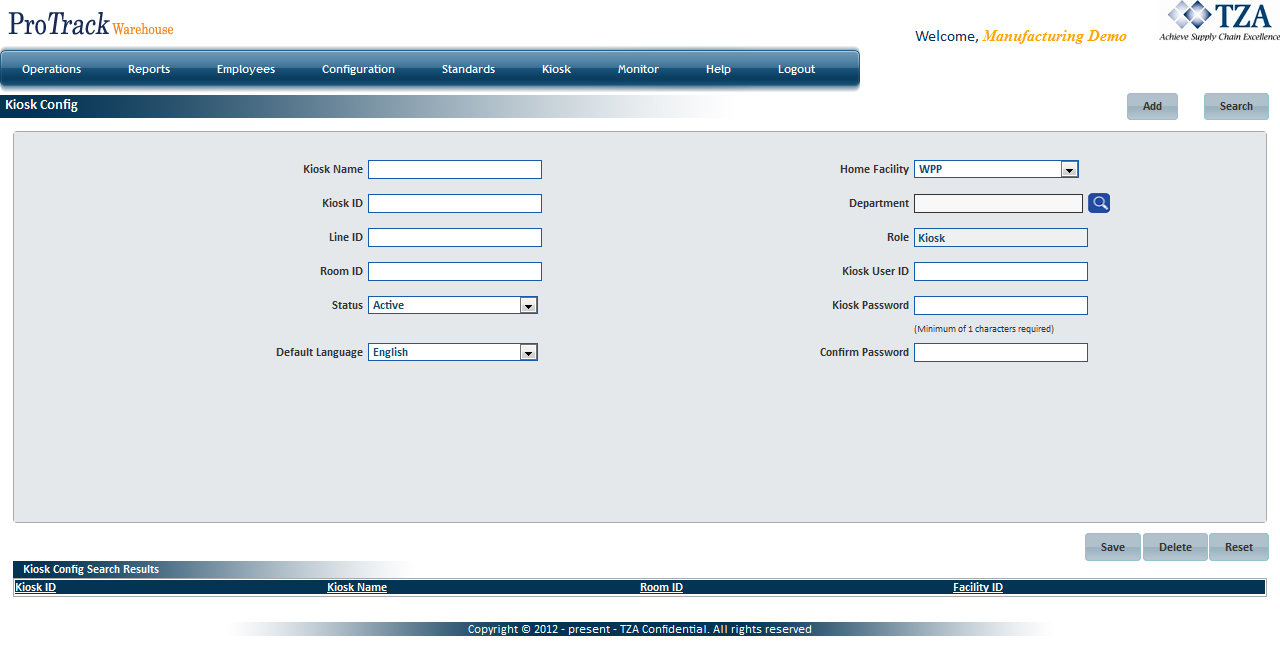
Fig.1 Kiosk ConfigField Description Kiosk Name Name of the kiosk that will be displayed after logging into a terminal, on reports, and the Control Screen (for Manufacturing environments). Alphanumeric values are accepted in this field. Kiosk ID Unique identifier that will distinguish one kiosk from another within the database. Alphanumeric values are accepted in this field. Line ID Production line which the kiosk will be tied to. Alphanumeric values are accepted in this field. Room ID Room in which the kiosk will be located. Alphanumeric values are accepted in this field. Status Status of the kiosk, Active or Inactive, which determines if the kiosk is usable or not. Default Language Kiosk will be displayed in the selected language, English or Spanish. Home Facility Facility which the kiosk will be tied to. Department Department which the kiosk will be tied to. Role Role will be automatically set to Kiosk and cannot be changed. Kiosk User ID Username that will be entered when logging into ProTrack Warehouse. Kiosk Password Password that will be entered in order to log into ProTrack Warehouse.
Creating A Kiosk Account
- Click
to clear all fields on the screen.
- Enter the Kiosk Name, Kiosk ID, Line ID, and Room ID.
- Select the Status, Default Language, and Home Facility from the drop down lists.
- Enter the Kiosk User ID and Password. Confirm the Kiosk Password.
- Click

Fig.2 Kiosk Config - Creating Kiosk
...
Search for the kiosk account that will be updated.
- Edit the necessary fields.
- Click
| Tip |
|---|
|
Deleting A Kiosk Account
- Search for the kiosk account that will be deleted.
- Click on the Kiosk ID link found in the search results to pull up the information.
Click
Info title Info - A kiosk account can only be deleted if it has never been used to work an activity.
- Once a kiosk account has been used to work an activity, it can be set to Inactive status to mark it unusable.
...
Overview
Content Tools