[!ProTrack Warehouse Wiki^homepage-button_GRN_V3.png!]
Page History
...
- Click on Work Assignment under the Kiosk menu.
- Enter or scan the Employee ID.
- Enter or scan the Assignment ID or select a Standard or Indirect Activity. If the employee does not have a work schedule created for the day, a popup will appear asking the employee if they would like to Clock In for the day.
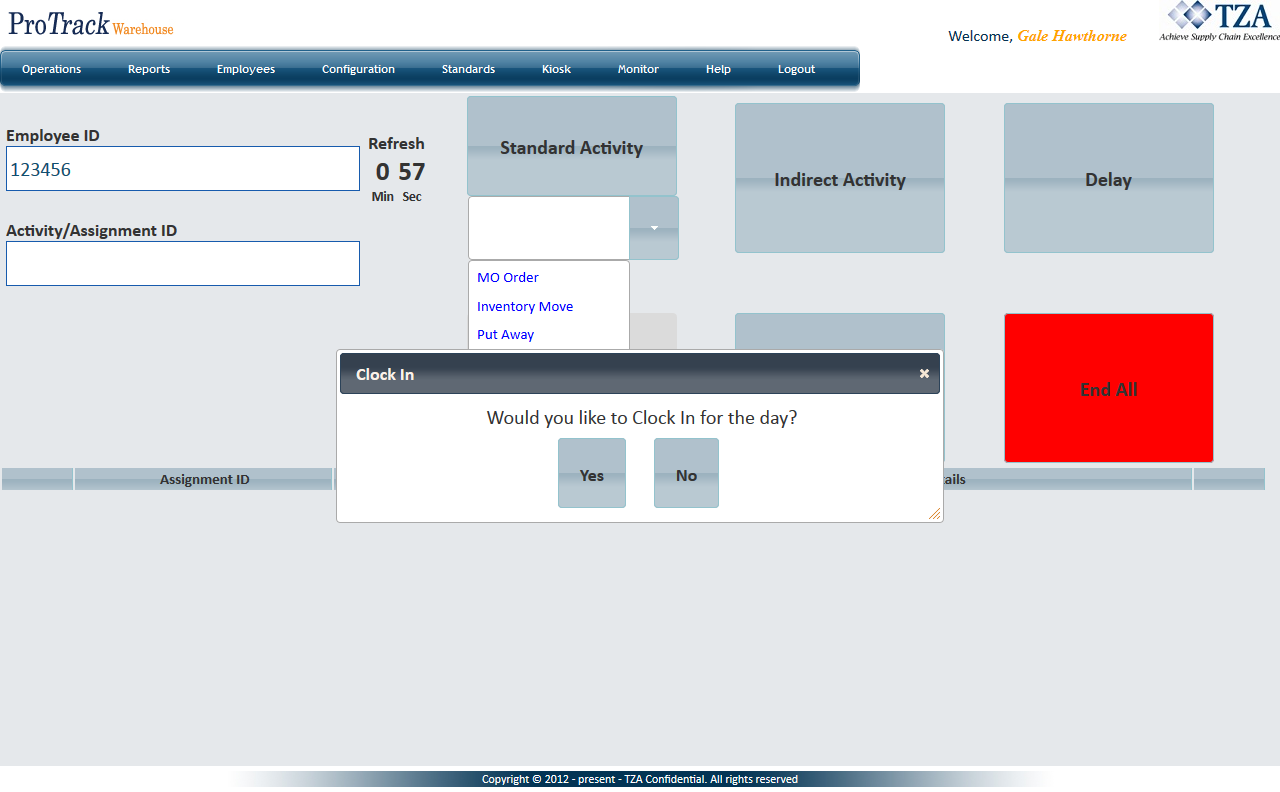
Fig.2 Kiosk Sign In/Out - Clocking In - Once the employee clicks 'Yes', ProTrack will capture that start time for the employee.
Clocking Out
Enter or scan the Employee ID.
- Click 'End All' button and a popup will appear asking the employee to confirm they want to end all assignments.
- Click
.
- A popup will appear asking the employee if they would like to Clock Out for the day.
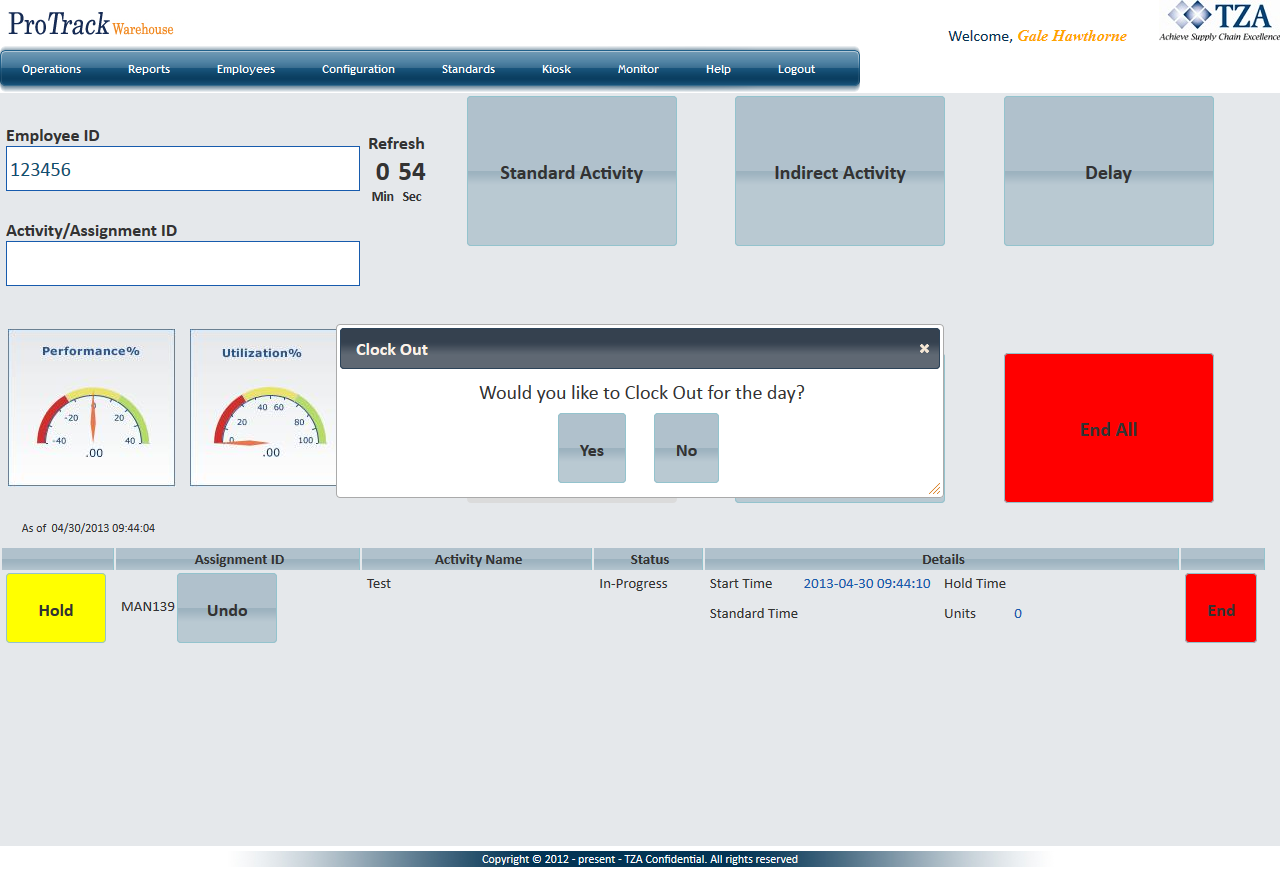
Fig.3 Kiosk Sign In/Out - Clocking Out - Click 'Yes' and ProTrack will capture the End of Day for the employee.
Overview
Content Tools