Select the Labor Plan menu and a popup window appears.
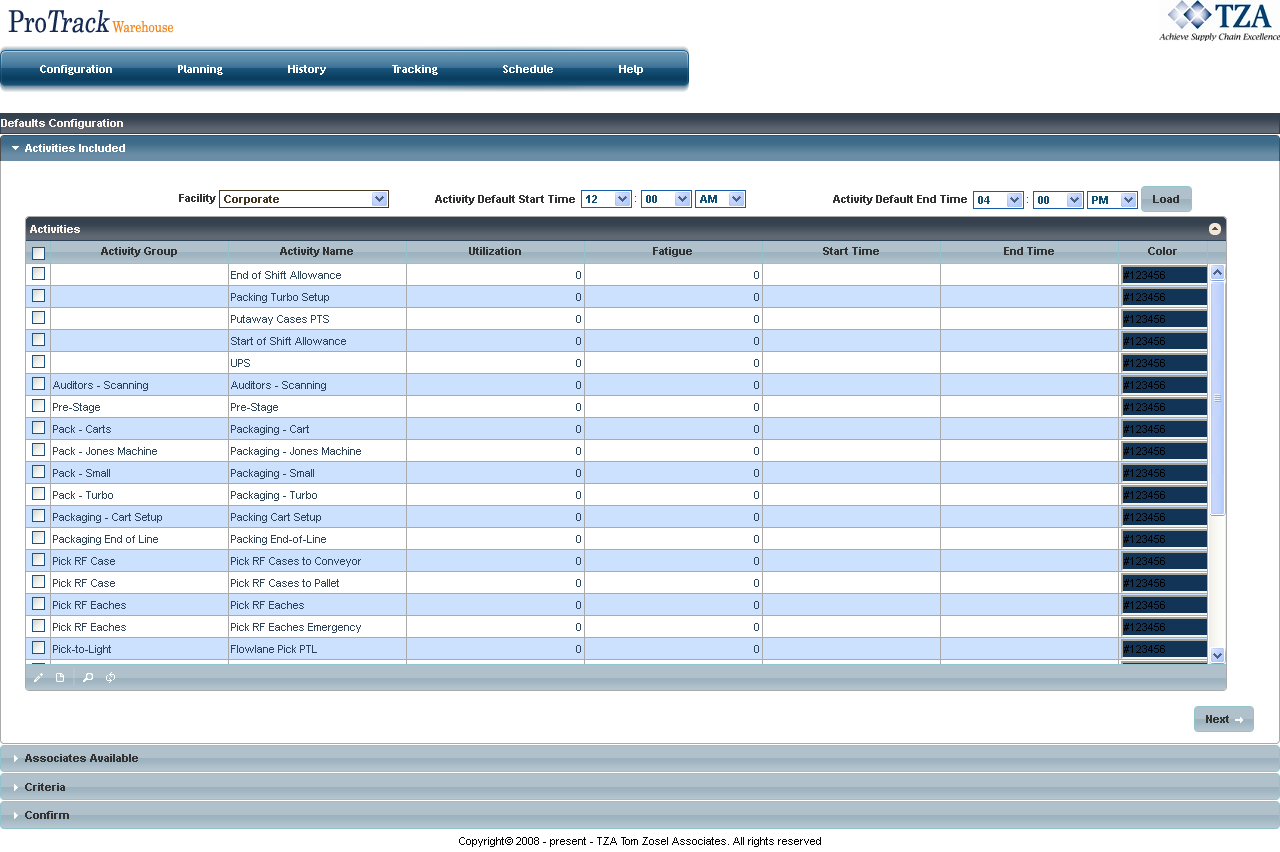
Fig.1 Labor Plan
|
The Labor Plan screen is used to forecast and plan labor demand. The ability to forecast and plan labor in a warehouse will enable you to deploy resources optimally and maximize labor utilization.
Labor Plan Tab Descriptions
Tab | Description |
|---|---|
Set up the default configurations for future labor plans. | |
| Planning | Create labor plan based on specific criteria. |
Lists all created labor plans for a specified facility and date. | |
Displays the progress bars for each activity group in an active labor plan. | |
Displays all active labor plans for the day. | |
Online help guide that will provide step-by-step instructions on the creation of a labor plan. |
Table 1. Labor Plan Tab Descriptions
To access the Labor Plan screen:
Select the Labor Plan menu and a popup window appears.
Fig.1 Labor Plan
|
This screen allows you to set up the default values for future labor plans, such as the start time and the associated colors for each activity group.
Configuration Tab Descriptions
Tab | Description |
|---|---|
Default Info | Displays the details for each activity group. |
CutOff Code | Lists all codes used for planning by cutoff times. |
| Penalty | Lists time penalties for an employee moving from one activity group to another. Penalties are used to determine if it is worth it for an employee to switch from an activity that uses a particular equipment to another activity that uses a different equipment. If the time it takes for the employee to switch equipment is still under the calculated standard time, then Labor Plan will select that employee. If it takes longer, then Labor Plan will not select that employee. |
Custom | Specify a color for each activity group. |
Table 2. Configuration Tab Descriptions
 . This will set the start and end times for all activity groups to the specified time.
 at the bottom left of the screen. This will open a popup window.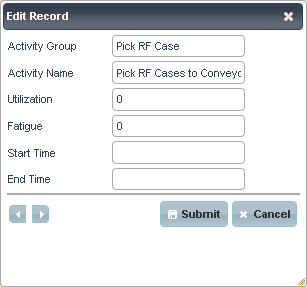
Click 'Next' to move to the next section.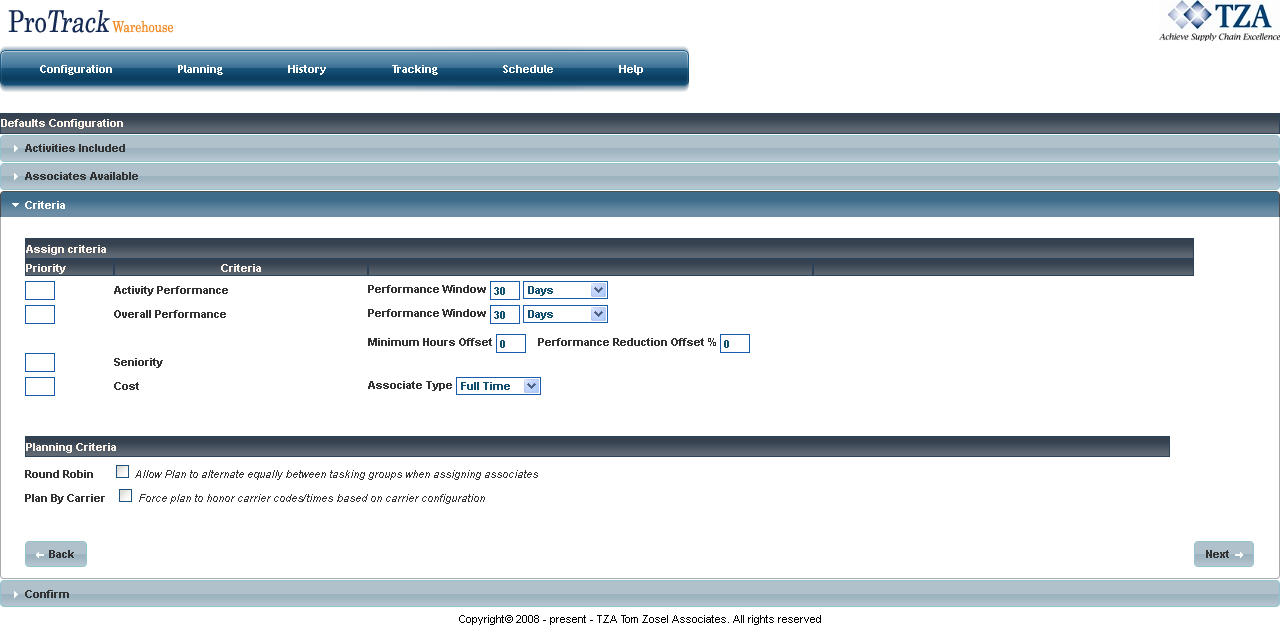
Fig.3 Labor Plan - Criteria
 to move to the next section.
 to save the configuration settings.
Click on 'CutOff Code' from the Configuration menu.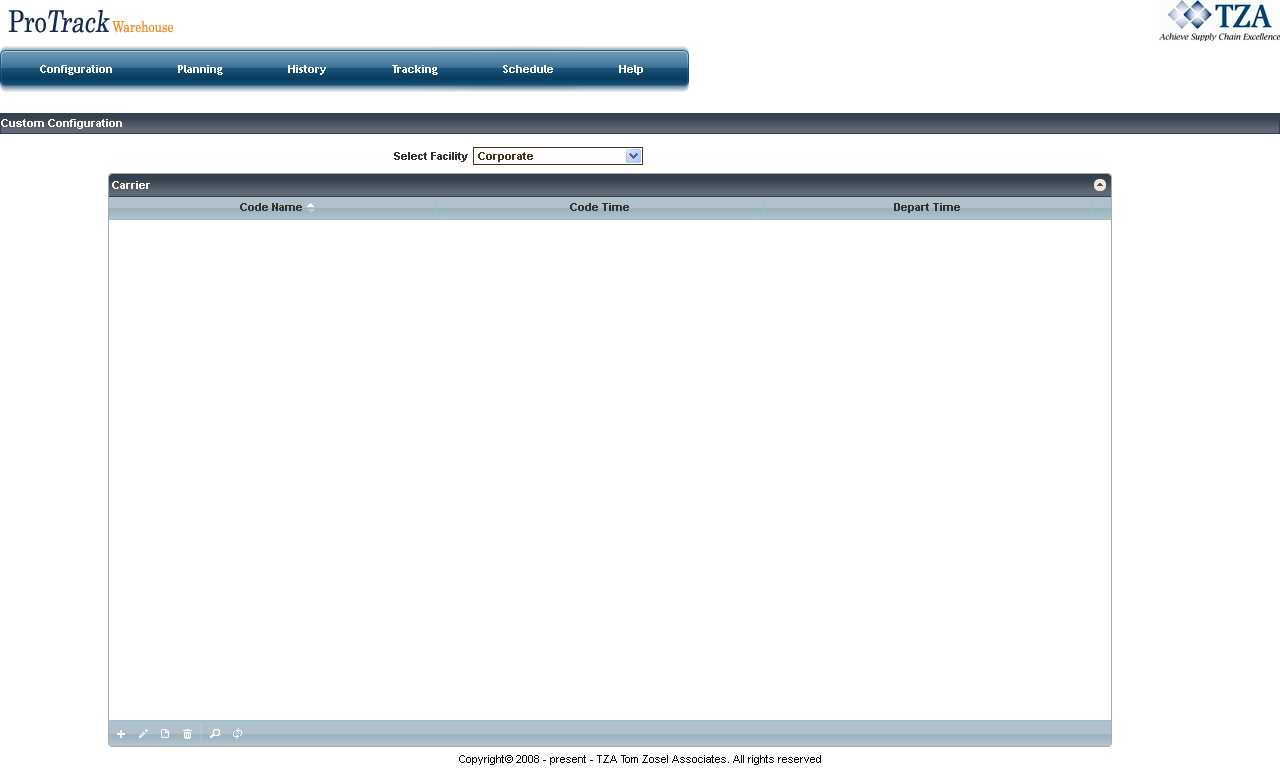
Fig.4 Labor Plan - Cutoff Code
Click '+' at the bottom left of the screen and a popup window appears.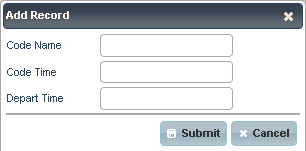
Fig.5 Labor Plan - Adding Cutoff Code
 to add the record.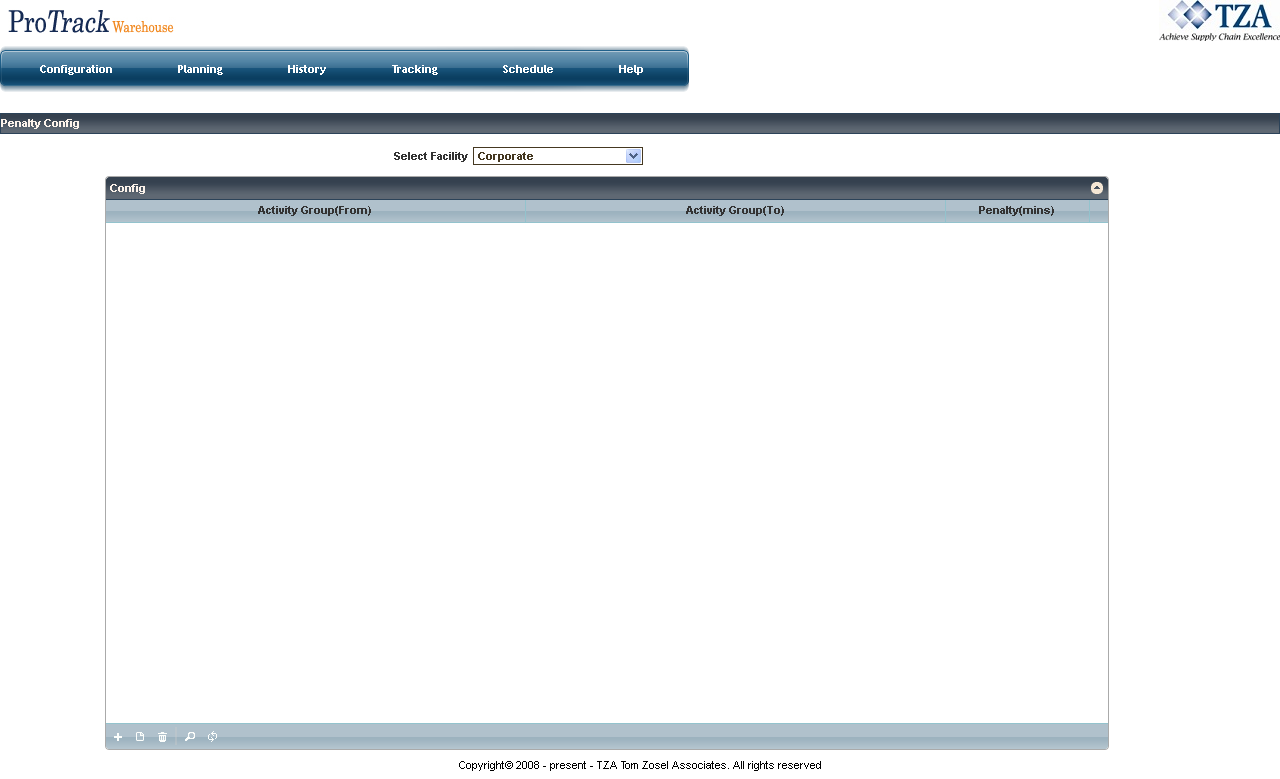
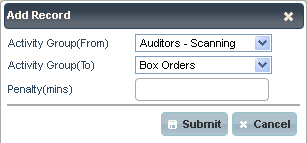 to add the penalty.
Repeat the previous two steps till all the penalties have been added.
|
Click on 'Custom' from the Configuration menu to set the default colors for each activity group. Click the color wheel to select the color.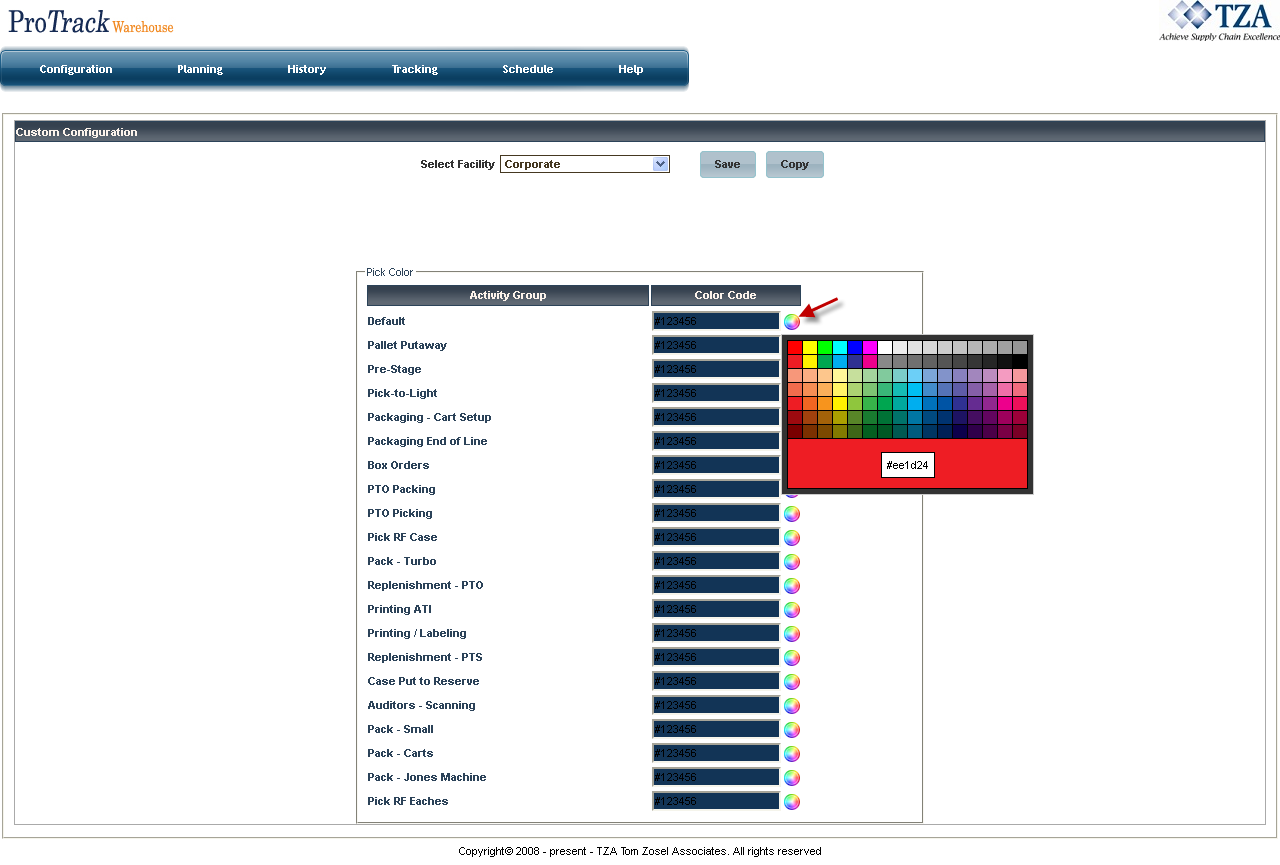
Fig.8 Labor Plan - Custom
Once all activity groups have been assigned a color, select 'Save' to save the colors.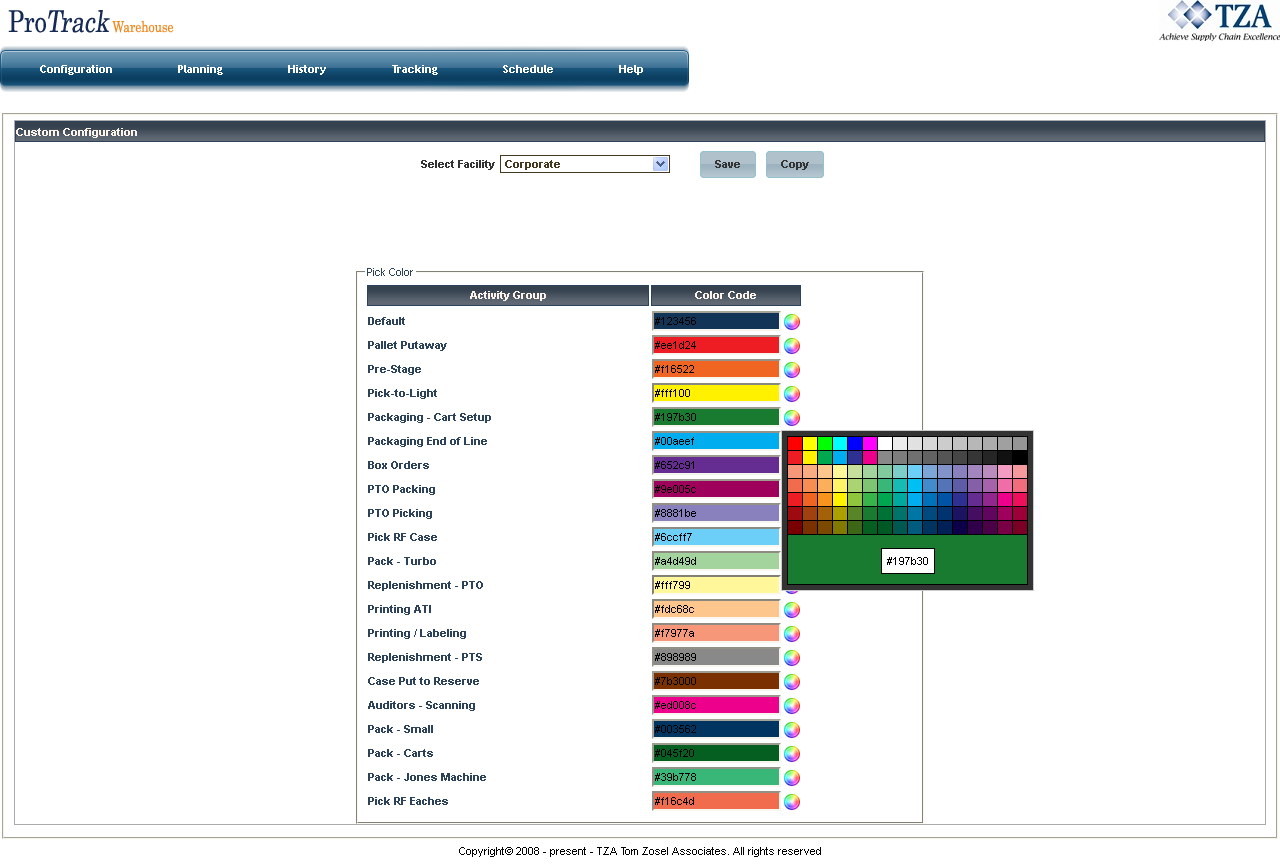
Fig.9 Labor Plan - Custom Colors
To create a new labor plan:
Click on the 'Planning' tab to access the screen.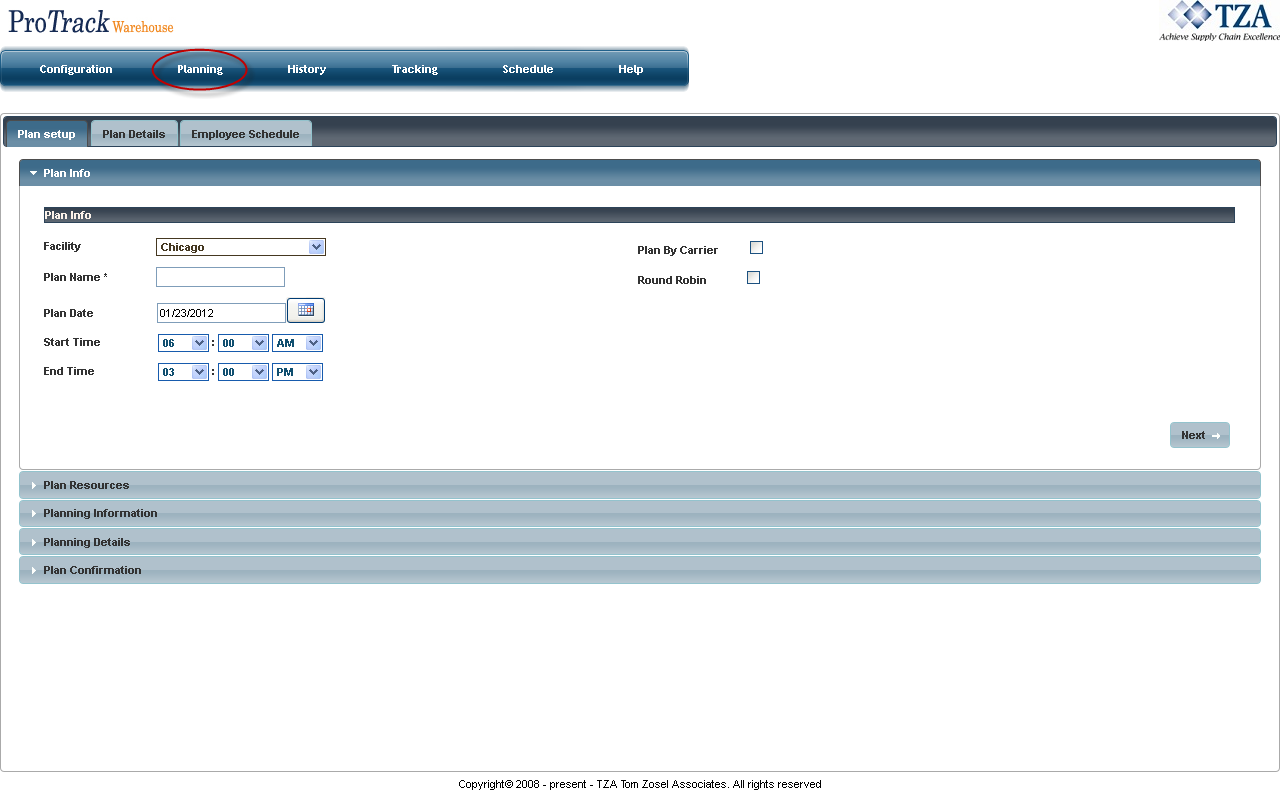
Fig.10 Labor Plan - Plan Info
 to select the plan date.
If planning by cutoff or round robin, select the corresponding check box.
|
Click to move to Plan Employees.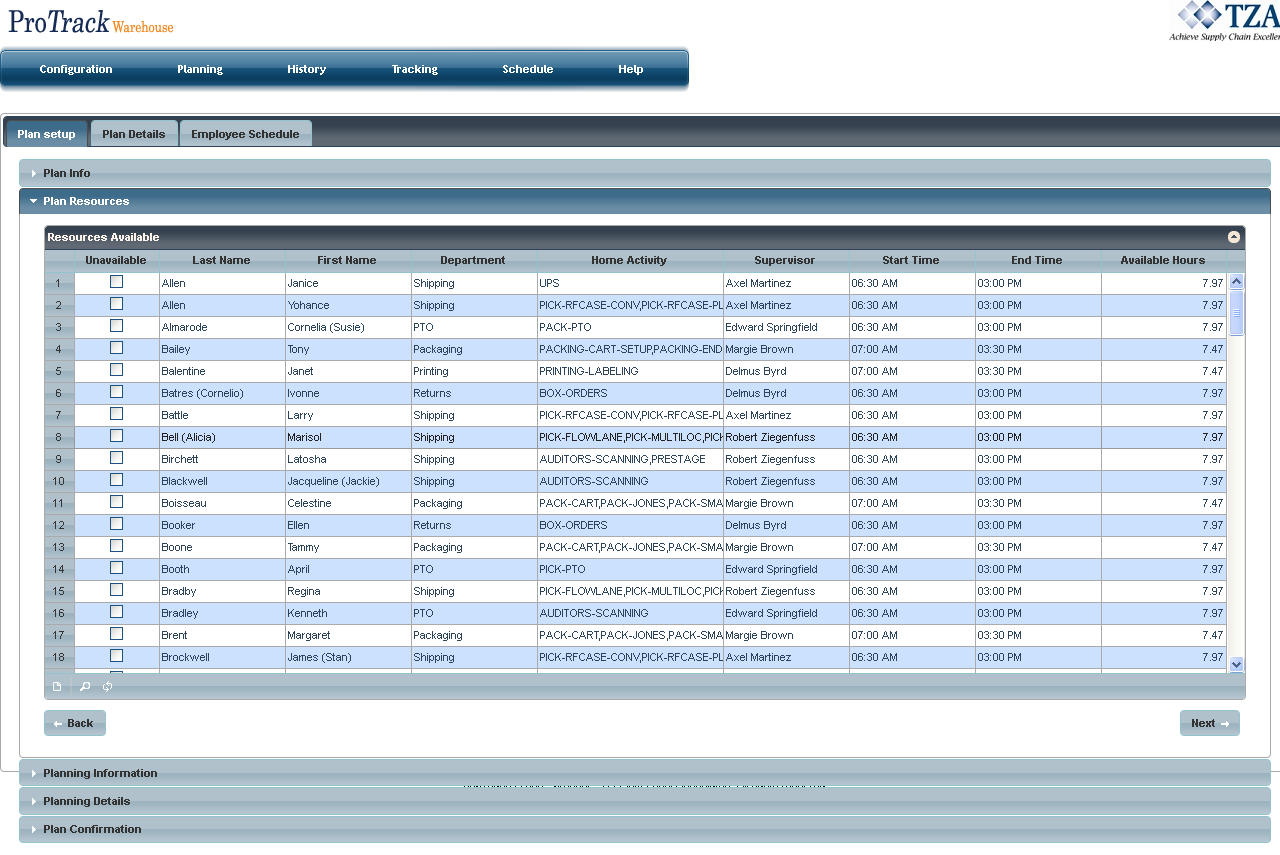
Fig.11 Labor Plan - Plan Employees
Click to move to Planning Information.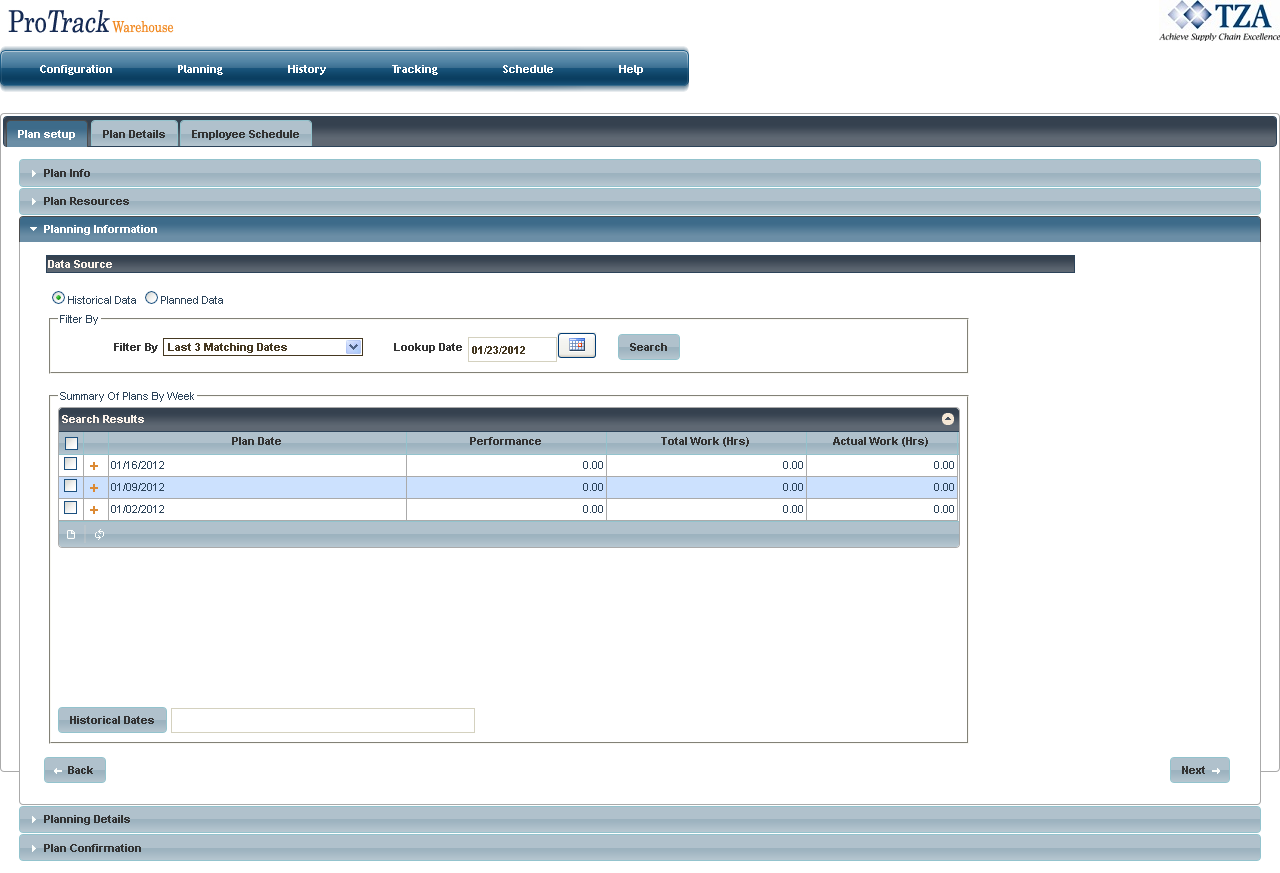
Fig.12 Labor Plan - Planning Information
Select the data source to use for forecasting the labor plan, either Historical Data or Planned Data.
|
Select the filter from the drop down list.
Filter Descriptions
Filter | Description |
|---|---|
Last 3 Matching Dates | Lists the last three like day of week. For example, if you select a Monday the list will display the previous three Mondays. |
Last Week Dates | Lists the week of the specified lookup date. |
Manually Chosen Calendar Dates | Specify which dates to use by clicking |
First Mondays of Last 3 Months | Lists Mondays of the previous three months. |
Last 3 Mondays Not 1st Monday of Month | Lists Mondays of the previous three weeks excluding the first Monday of the month. |
Table 3. Filter Descriptions
Click to move to Planning Details.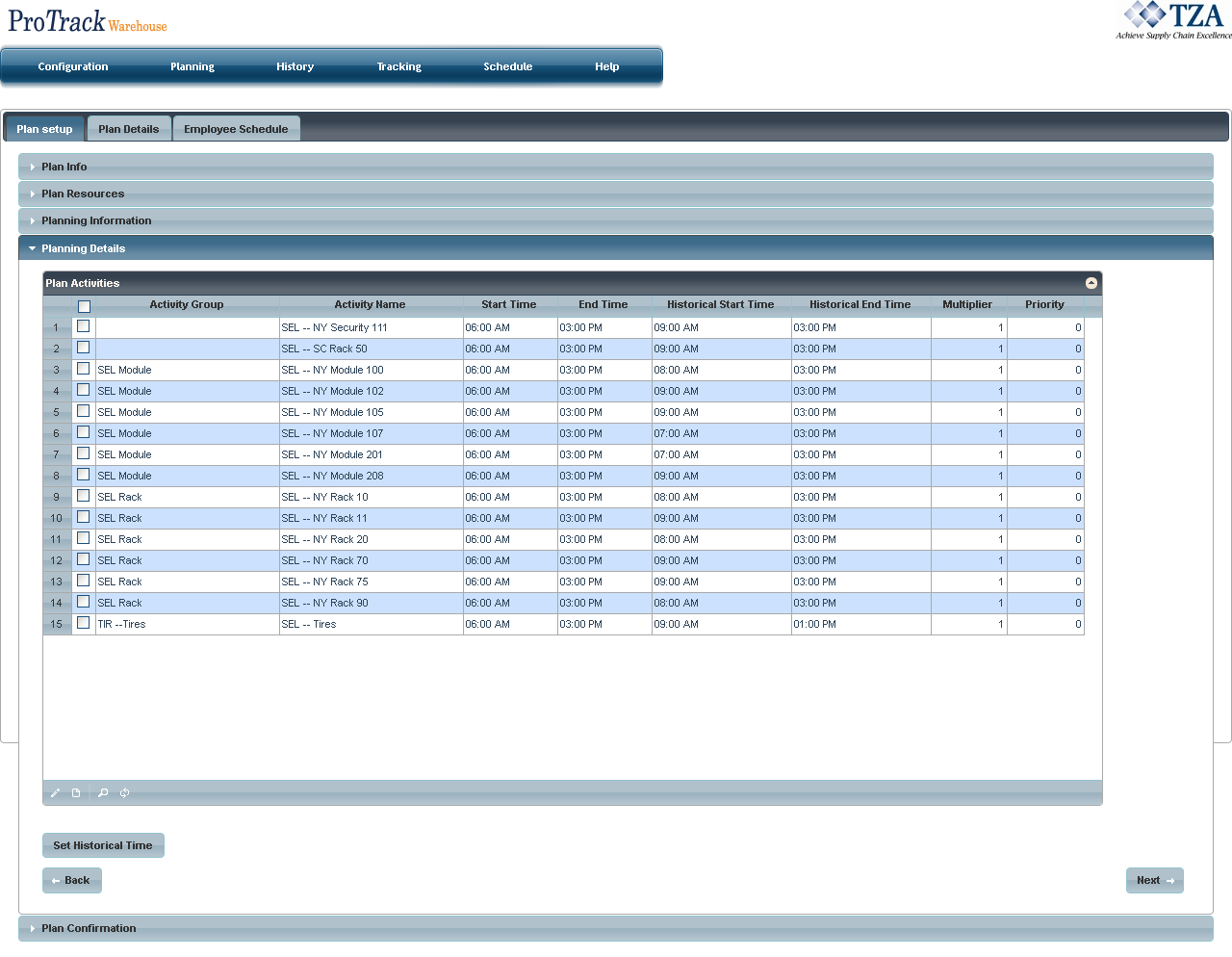
Fig.13 Labor Plan - Planning Details
to change the start and end time of an activity group.Click 'Set Historical Time' to use the start and end times of dates selected in Planning Information.
|
Click to move to Plan Confirmation.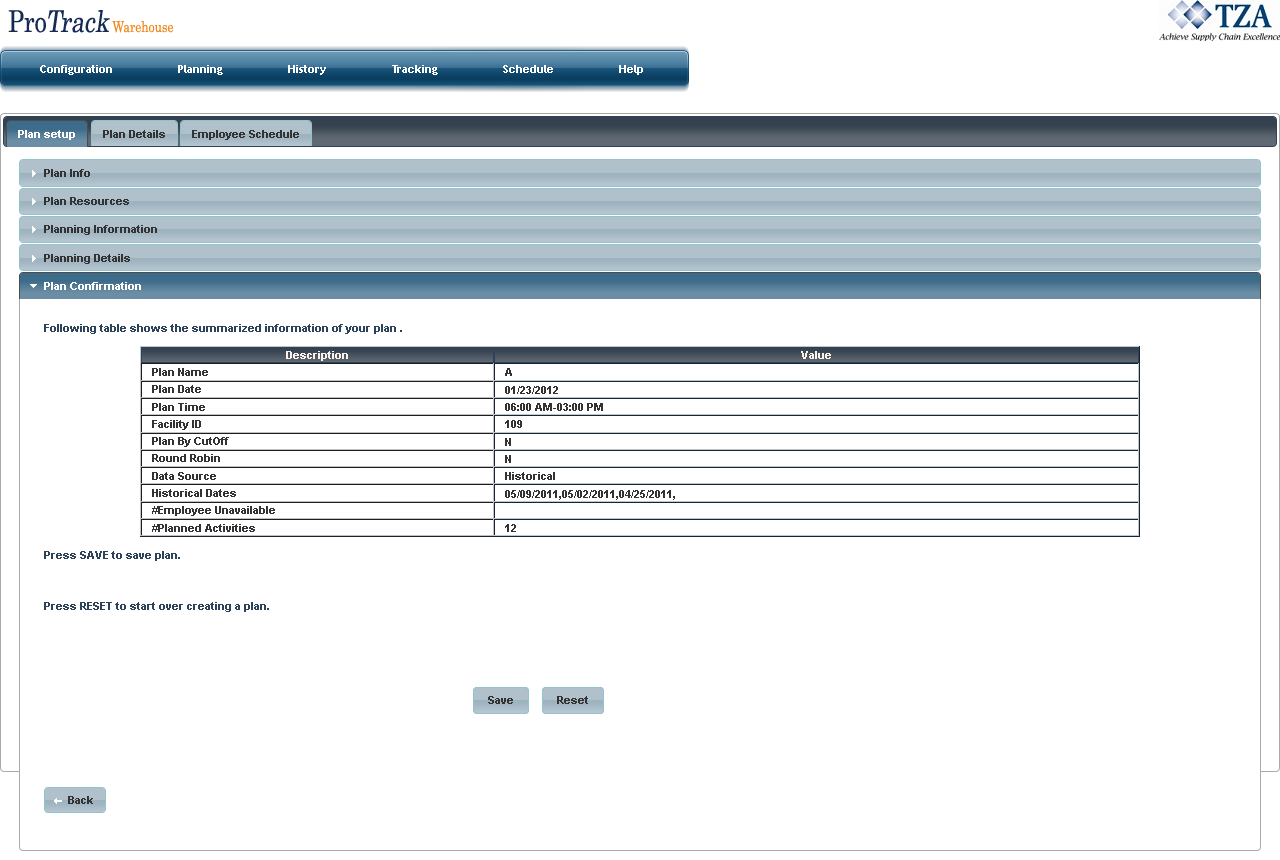
Fig.14 Labor Plan - Plan Confirmation
Click to save the labor plan.
|
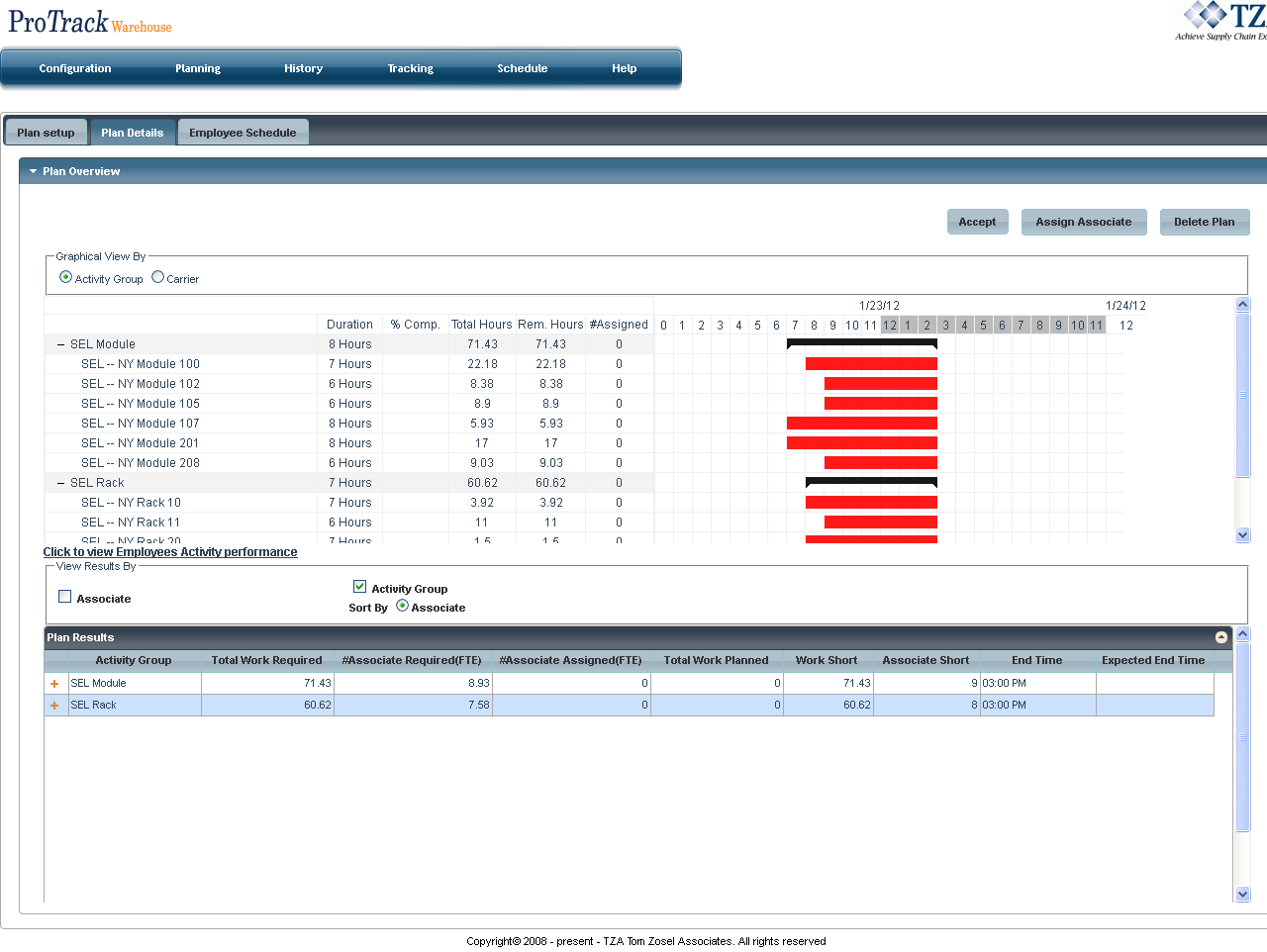
 to assign employees to each activity group.
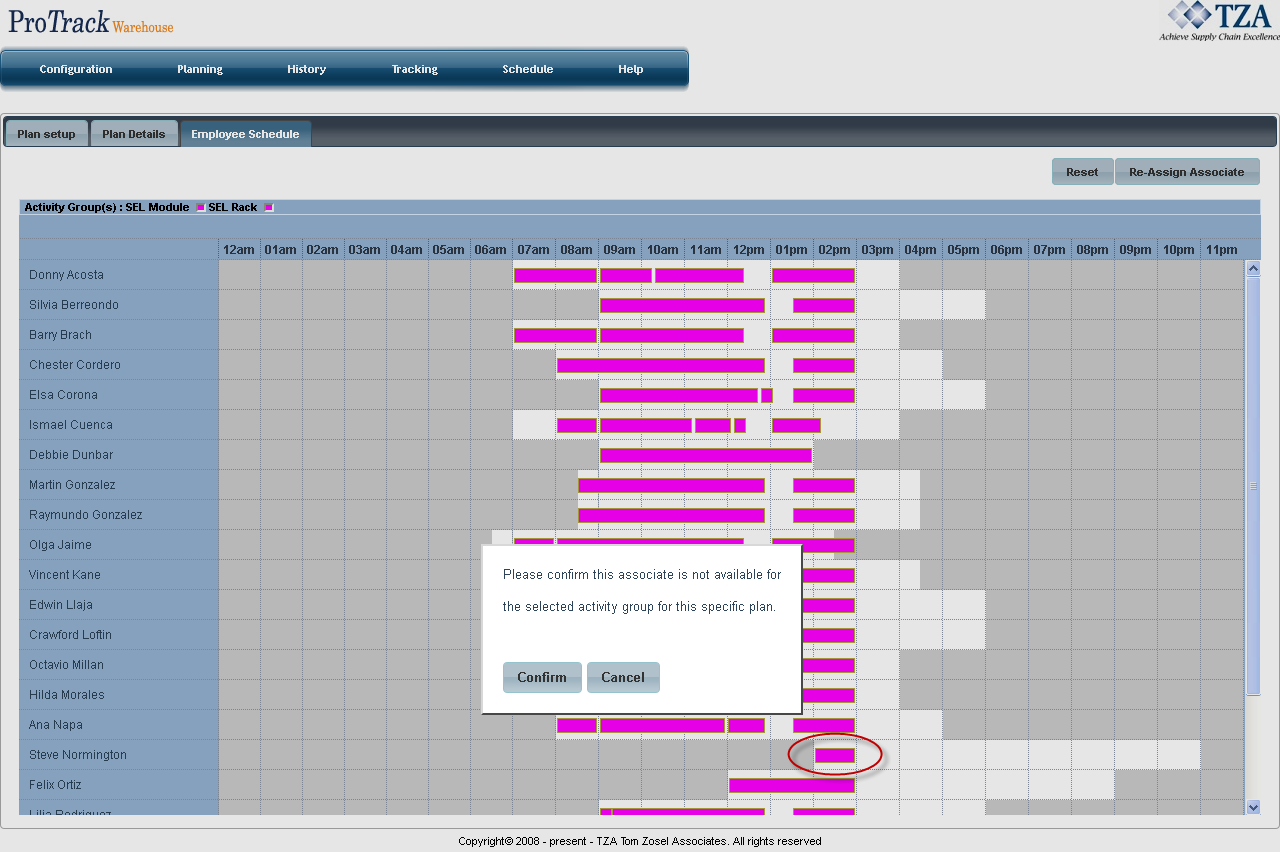
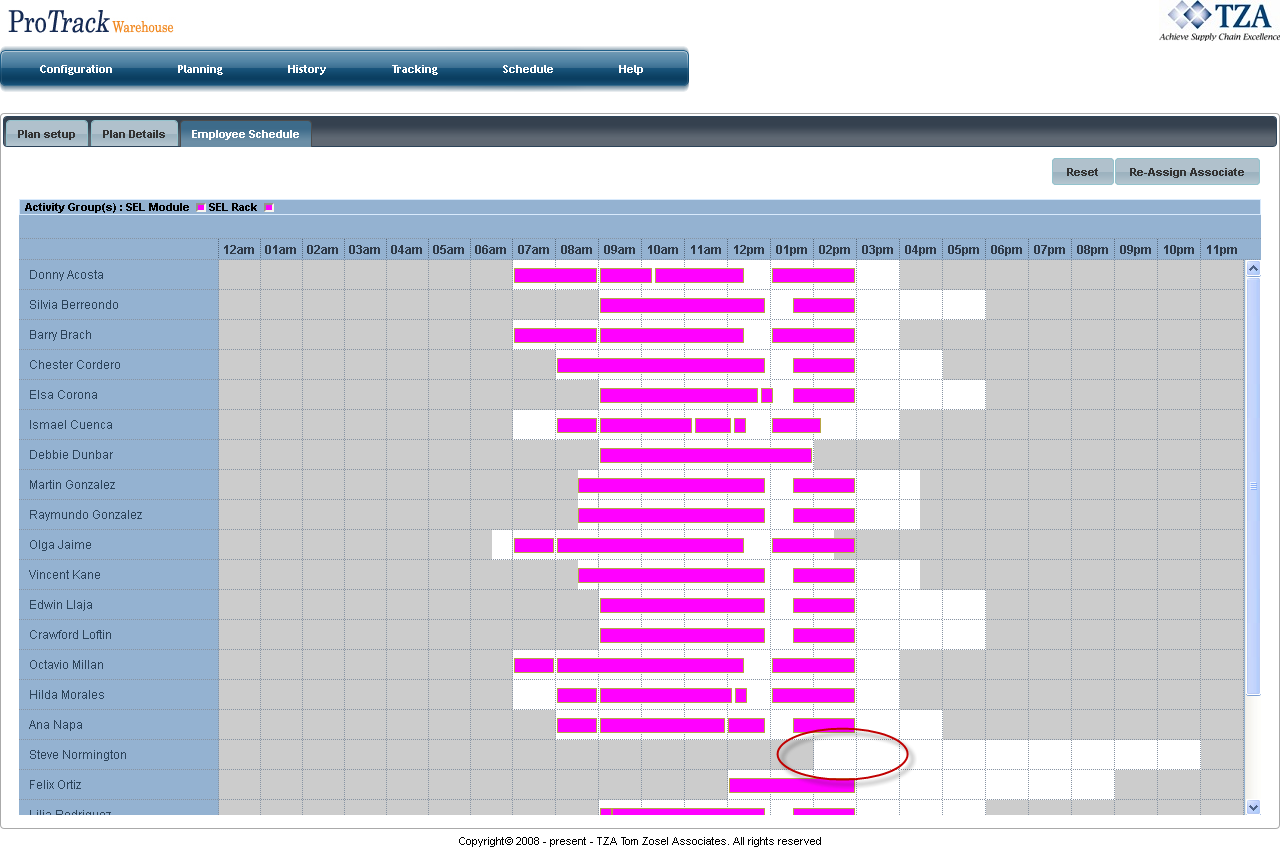
Once employees have been assigned, click 'Employee Schedule' tab for a graphical display of each employee assigned to an activity group throughout the duration of the plan.
|
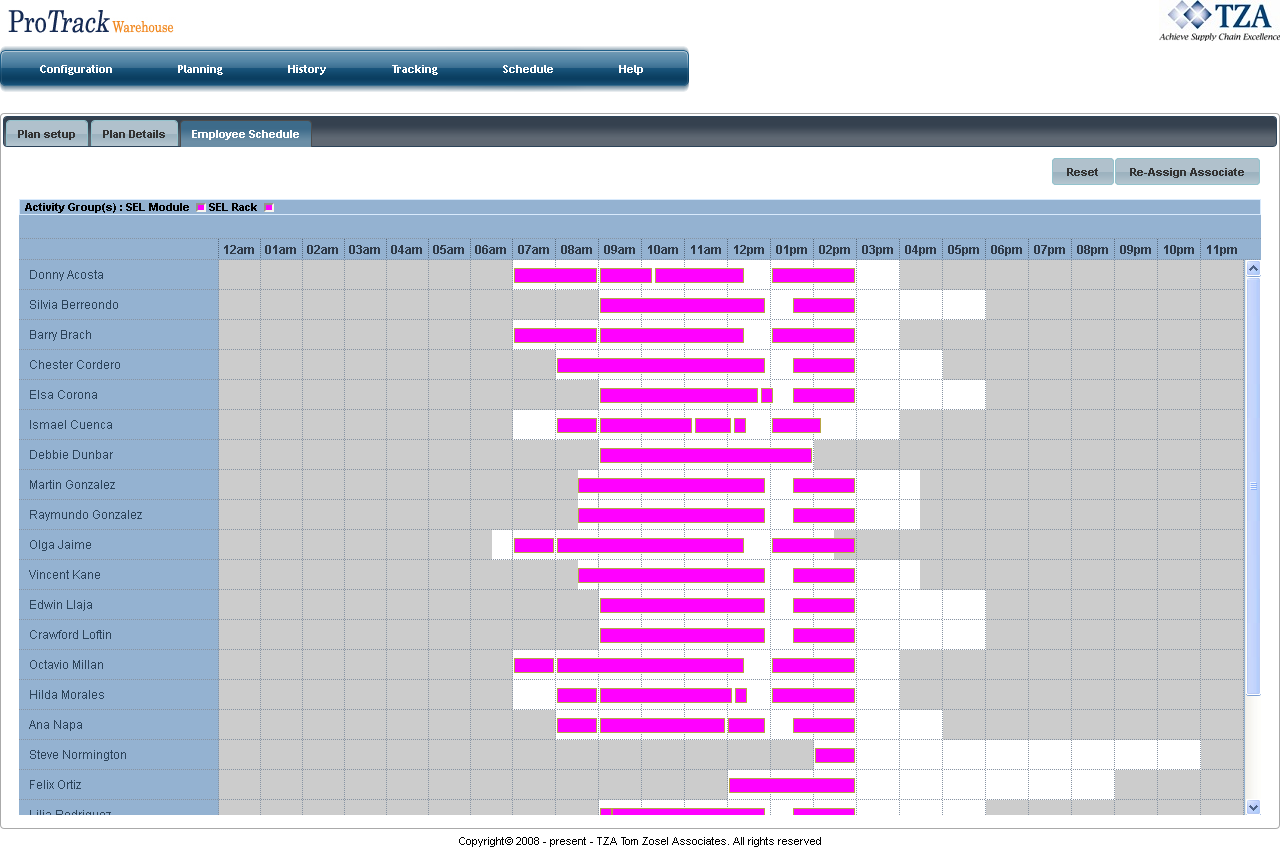
Fig.16 Labor Plan - Employee Schedule
Go back to the 'Plan Details' tab and click 'Accept' to accept the plan.
|
To view previously created labor plans:
Click on the 'History' tab to access the screen.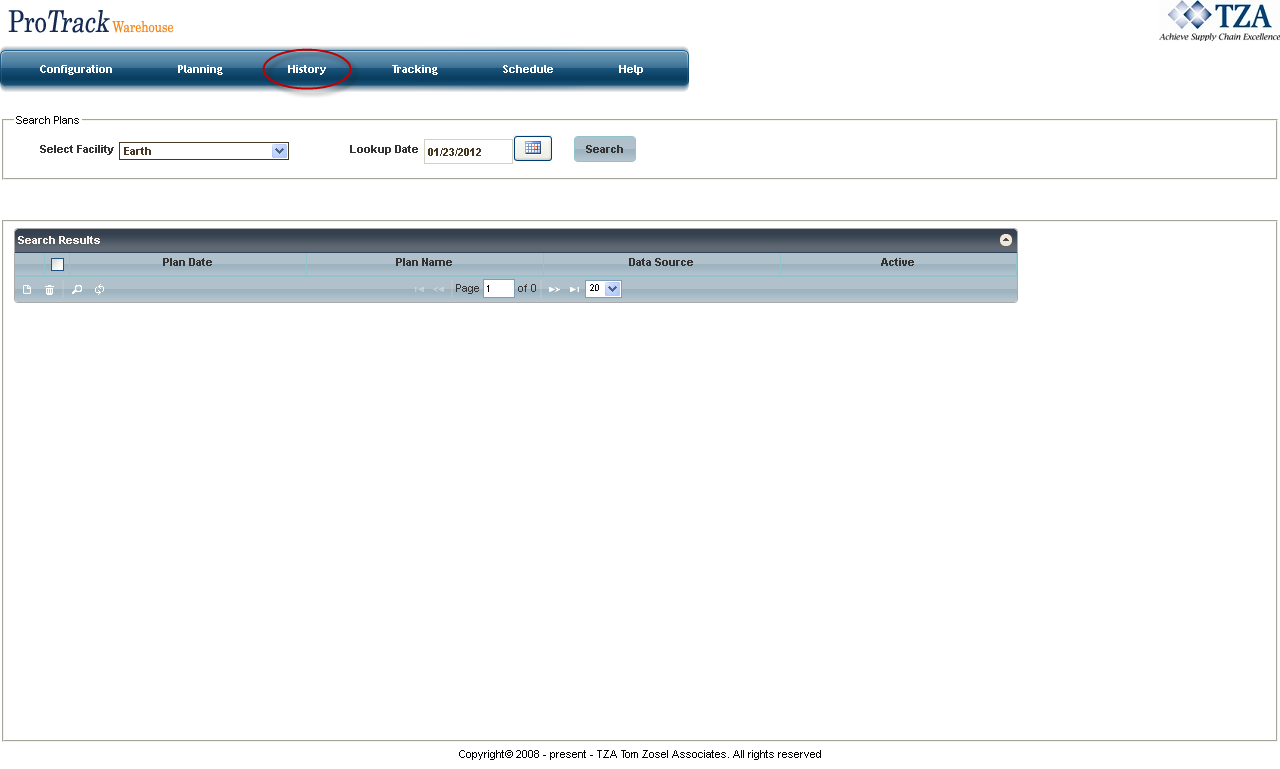
Fig.19 Labor Plan - History
to specify the lookup date. to list all labor plans created for that lookup date.
To track the progress of an active labor plan:
Click on the 'Tracking' tab to access the screen.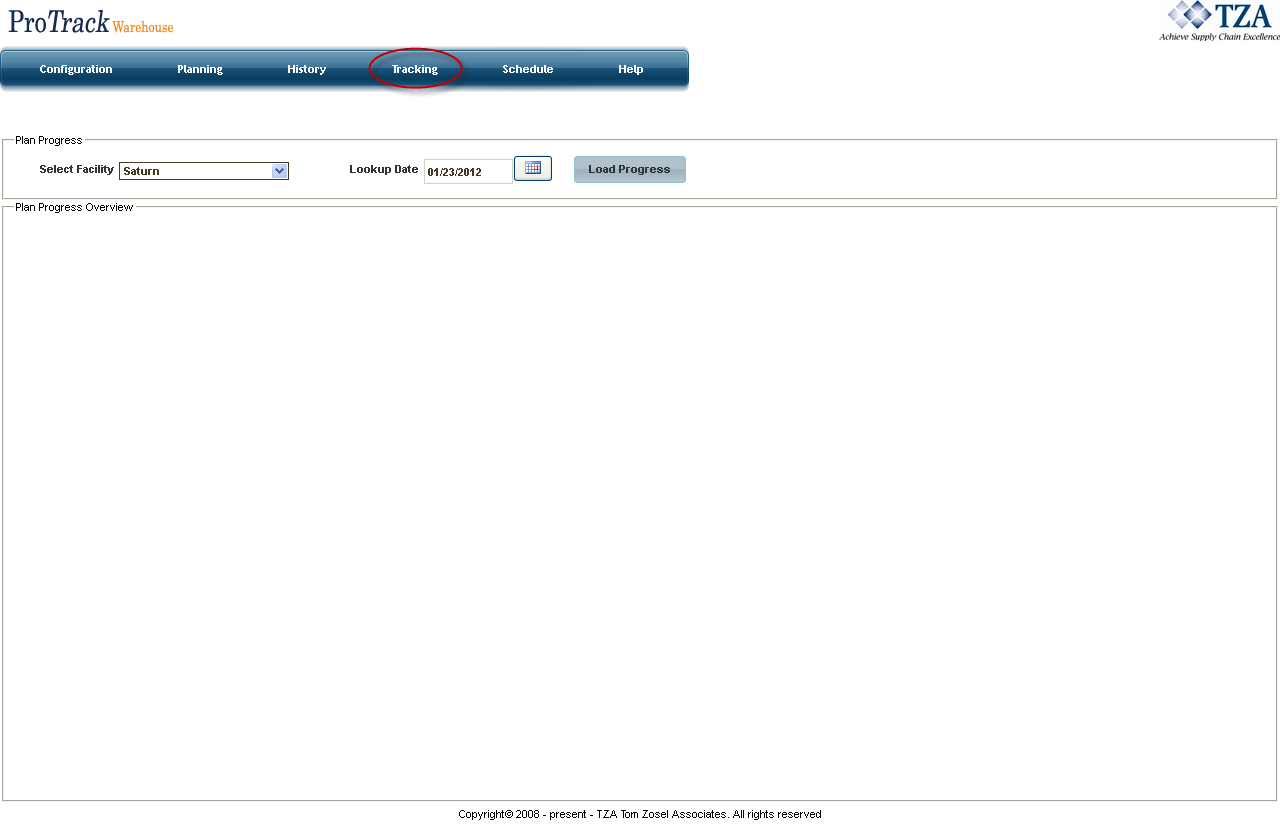
Fig.20 Labor Plan - Tracking
to specify the Lookup Date.Click 'Load Progress' to load the plan.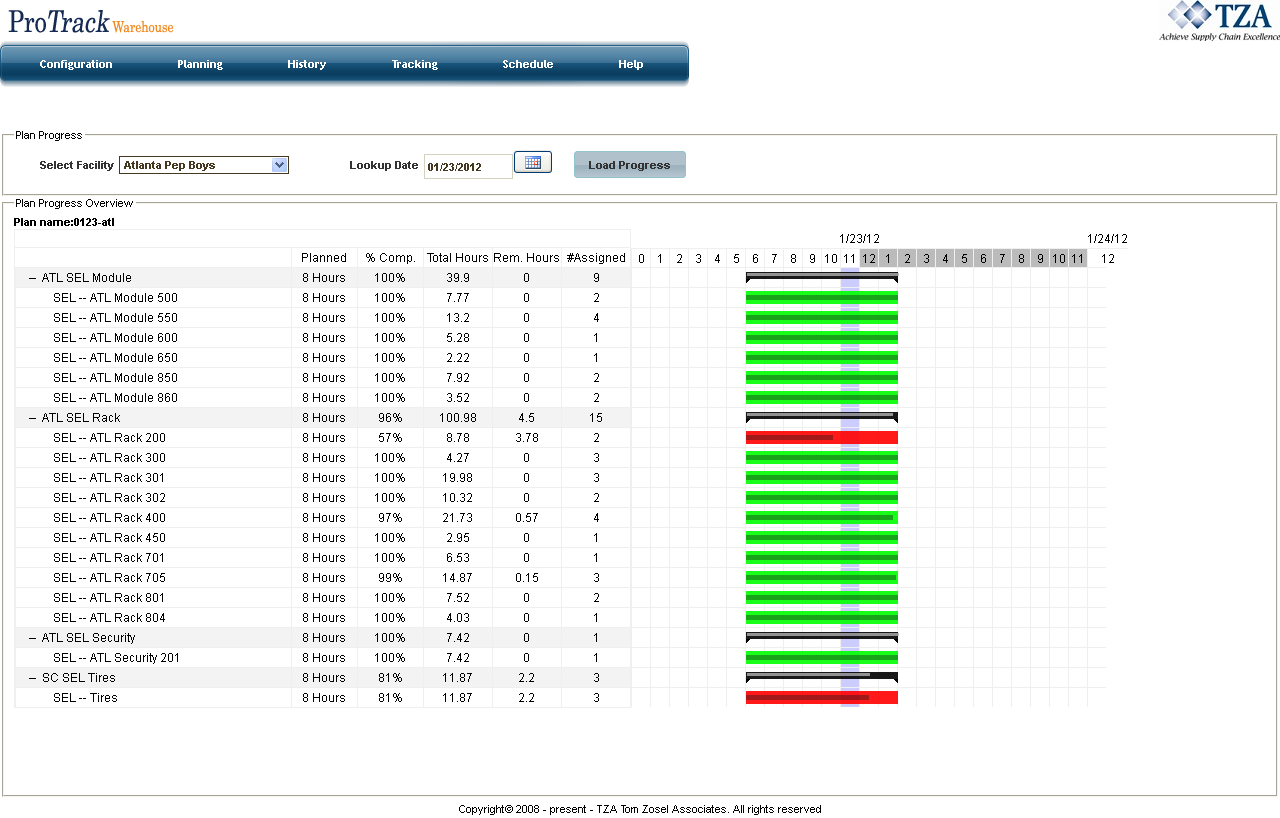
Fig.21 Labor Plan - Tracking
To view active labor plans:
Click on the 'Schedule' tab to access the screen.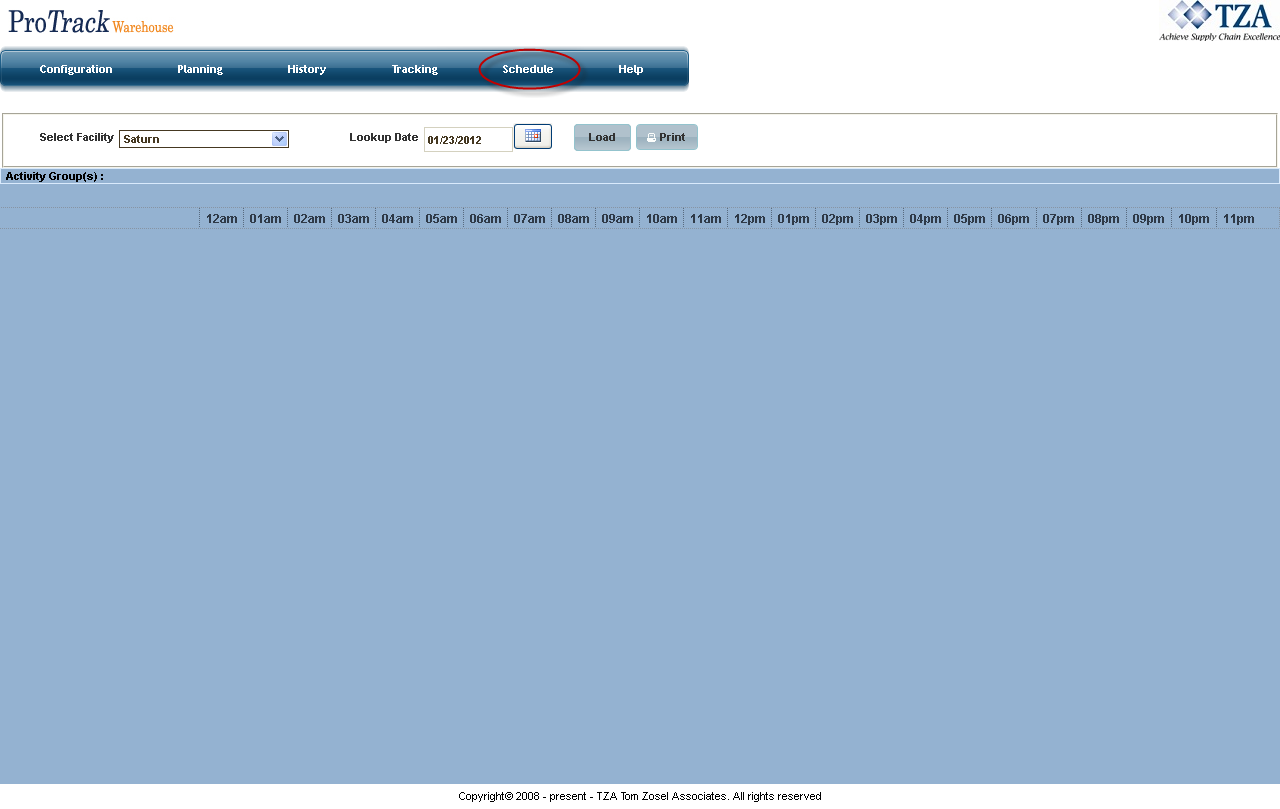
Fig.22 Labor Plan - Schedule
to specify the lookup date. to display all active labor plans. to print the labor plans. It can be exported to Excel or PDF.
To access the online help guide:
Click on the 'Help' tab to access the screen.
Fig.23 Labor Plan - Help Guide
 to start over and create a new plan.